Most software that are written using .NET suite of programming languages (like C#) require a specific version of .NET framework to run. You must have seen on the boxes of many software that .NET framework 2 is required for this application to run.
Since all versions of .NET framework are freely available to download and install, its not much of a deciding factor before you buy or download a software that runs on a sepcific version of .NET framework. The only question is to find what versions of .NET framework you have already installed on your computer and if you need to download and install the latest version of .NET framework.
Checking The Version of .NET Framework Installed on Windows
• One way to find out all the installed versions of .NET framework on your computer is to go to Add/Remove programs and check there.

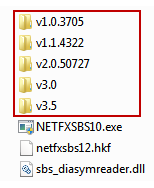
• Another way is to go to C:\Windows\Microsoft.NET\Framework\ path using your Windows explorer and check there. To open this path, you can open Windows explorer and paste the path in the address bar at top OR you can open the run dialogue box (Start > Run) and paste the path there to open it directly. Here you can clearly see all the versions of .NET framework installed on your computer.
• You can also find the versions of .NET framework installed on your computer from registry editor. Start registry editor by opening the Run dialogue box and then typing regedit in it. Now, go to this path in registry editor,
Here you will find a list of all the versions of .NET framework installed on your Computer.

If you want to find out the service pack version of any specific version of .NET framework here, you can simply click on its key in registry editor and its service pack version will be displayed in the right side.
• You can also use command prompt to find out the latest version of .NET framework installed on your computer. To do this, start command prompt or cmd as an administrator, then paste this code in command prompt,
It will take a few minutes for this command to complete processing and display the .NET framework version on your computer, so please be patient.
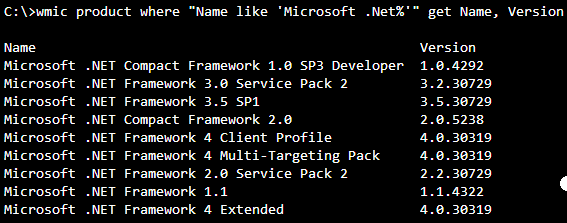
You can also try this alternative command prompt code,
Just like the code above, this will also take a few minutes to process and then display the results.
Note that if .NET framework is not installed on your computer, both the above commands will display ‘No Instance(s) available’.
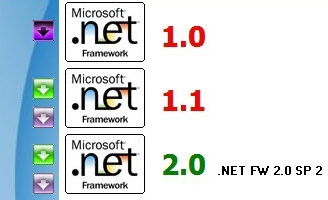
• Another way is to use ASoft .NET Version Detector. Its a lightweight and free software displays information about the versions of .NET framework on your computer. The .NET versions that are already installed are displayed in green where as the versions not installed on your computer are shown in red color. It also shows the official download link of the versions not installed on your computer, so that you can download and install them immediately if needed.
You can run ASoft .NET Version Detector without actually having any version of .NET installed on your computer as its a native application, and thus, runs directly on Windows instead of .NET virtual machine.
You can Download ASoft .NET Version Detector here.
• The quickest and easiest way to find the latest version of .NET framework and its service pack installed on your computer is to visit this page in the Internet Explorer browser. It will instantly display the version on top.

Source Code and Scripts To Find .NET Version on Windows
If you are a programmer and you need to determine the versions of .NET framework installed on a computer, it can be done easily. Since you already know which registry keys store the information about the .NET version (see above), you can query the Windows registry to find this information easily. You can use any programming language to do this as most provide native functions to query the Windows registry. Following are some source code snippets and scripts to find the .NET version on a Windows computer.
• C# source code to find all versions of .NET Framework installed on Windows.
using Microsoft.Win32;
public class GetDotNetVersion
{
public static void Main()
{
using (RegistryKey ndpKey = RegistryKey.OpenBaseKey(RegistryHive.LocalMachine, RegistryView.Registry32).OpenSubKey(@"SOFTWARE\Microsoft\NET Framework Setup\NDP"))
{
foreach (string versionKeyName in ndpKey.GetSubKeyNames())
{
if (versionKeyName.StartsWith("v"))
{
RegistryKey versionKey = ndpKey.OpenSubKey(versionKeyName);
string name = (string)versionKey.GetValue("Version", "");
string sp = versionKey.GetValue("SP", "").ToString();
string install = versionKey.GetValue("Install", "").ToString();
if (install == "") //no install info, ust be later
Console.WriteLine(versionKeyName + " " + name);
else
{
if (sp != "" && install == "1")
{
Console.WriteLine(versionKeyName + " " + name + " SP" + sp);
}
}
if (name != "")
{
continue;
}
foreach (string subKeyName in versionKey.GetSubKeyNames())
{
RegistryKey subKey = versionKey.OpenSubKey(subKeyName);
name = (string)subKey.GetValue("Version", "");
if (name != "")
sp = subKey.GetValue("SP", "").ToString();
install = subKey.GetValue("Install", "").ToString();
if (install == "") //no install info, ust be later
Console.WriteLine(versionKeyName + " " + name);
else
{
if (sp != "" && install == "1")
{
Console.WriteLine(" " + subKeyName + " " + name + " SP" + sp);
}
else if (install == "1")
{
Console.WriteLine(" " + subKeyName + " " + name);
}
}
}
}
}
}
}
}
You will need administrator rights to compile and run this code on your computer. The output of this code will be similar to this,
v3.0 3.0.30729.4037 SP2
v3.5 3.5.30729.01 SP1
• VB source code to find all versions of .NET Framework installed on Windows.
Public Class GetDotNetVersion
Public Shared Sub Main()
Using ndpKey As RegistryKey = RegistryKey.OpenBaseKey(RegistryHive.LocalMachine, RegistryView.Registry32).OpenSubKey("SOFTWARE\Microsoft\NET Framework Setup\NDP")
For Each versionKeyName As String In ndpKey.GetSubKeyNames()
If versionKeyName.StartsWith("v") Then
Dim versionKey As RegistryKey = ndpKey.OpenSubKey(versionKeyName)
Dim name As String = CStr(versionKey.GetValue("Version", ""))
Dim sp As String = versionKey.GetValue("SP", "").ToString()
Dim install As String = versionKey.GetValue("Install", "").ToString()
If install = "" Then 'no install info, ust be later
Console.WriteLine(versionKeyName & " " & name)
Else
If sp <> "" AndAlso install = "1" Then
Console.WriteLine(versionKeyName & " " & name & " SP" & sp)
End If
End If
If name <> "" Then
Continue For
End If
For Each subKeyName As String In versionKey.GetSubKeyNames()
Dim subKey As RegistryKey = versionKey.OpenSubKey(subKeyName)
name = CStr(subKey.GetValue("Version", ""))
If name <> "" Then
sp = subKey.GetValue("SP", "").ToString()
End If
install = subKey.GetValue("Install", "").ToString()
If install = "" Then 'no install info, ust be later
Console.WriteLine(versionKeyName & " " & name)
Else
If sp <> "" AndAlso install = "1" Then
Console.WriteLine(" " & subKeyName & " " & name & " SP" & sp)
ElseIf install = "1" Then
Console.WriteLine(" " & subKeyName & " " & name)
End If
End If
Next subKeyName
End If
Next versionKeyName
End Using
End Sub
End Class
The output of this source code will be just like the output of the C# code above.
• C++ source code to find all versions of .NET Framework installed on Windows.
#include <stdio.h>
#include <tchar.h>
#include <windows.h>
// The computer on which this code is compiled may not have the most recent platform SDK
// with these values defined. In this scenario, define the values.
#ifndef SM_TABLETPC
#define SM_TABLETPC 86
#endif
#ifndef SM_MEDIACENTER
#define SM_MEDIACENTER 87
#endif
// The following constants represent registry key names and value names
// to use for detection.
const TCHAR *g_szNetfx10RegKeyName = _T("Software\\Microsoft\\.NETFramework\\Policy\\v1.0");
const TCHAR *g_szNetfx10RegKeyValue = _T("3705");
const TCHAR *g_szNetfx10SPxMSIRegKeyName = _T("Software\\Microsoft\\Active Setup\\Installed Components\\{78705f0d-e8db-4b2d-8193-982bdda15ecd}");
const TCHAR *g_szNetfx10SPxOCMRegKeyName = _T("Software\\Microsoft\\Active Setup\\Installed Components\\{FDC11A6F-17D1-48f9-9EA3-9051954BAA24}");
const TCHAR *g_szNetfx10SPxRegValueName = _T("Version");
const TCHAR *g_szNetfx11RegKeyName = _T("Software\\Microsoft\\NET Framework Setup\\NDP\\v1.1.4322");
const TCHAR *g_szNetfx20RegKeyName = _T("Software\\Microsoft\\NET Framework Setup\\NDP\\v2.0.50727");
const TCHAR *g_szNetfx11PlusRegValueName = _T("Install");
const TCHAR *g_szNetfx11PlusSPxRegValueName = _T("SP");
// The following items are function prototypes.
int GetNetfx10SPLevel();
int GetNetfx11SPLevel();
int GetNetfx20SPLevel();
bool IsCurrentOSTabletMedCenter();
bool IsNetfx10Installed();
bool IsNetfx11Installed();
bool IsNetfx20Installed();
bool RegistryGetValue(HKEY, const TCHAR*, const TCHAR*, DWORD, LPBYTE, DWORD);
bool IsNetfx10Installed()
{
TCHAR szRegValue[MAX_PATH];
return (RegistryGetValue(HKEY_LOCAL_MACHINE, g_szNetfx10RegKeyName, g_szNetfx10RegKeyValue, NULL, (LPBYTE)szRegValue, MAX_PATH));
}
bool IsNetfx11Installed()
{
bool bRetValue = false;
DWORD dwRegValue=0;
if (RegistryGetValue(HKEY_LOCAL_MACHINE, g_szNetfx11RegKeyName, g_szNetfx11PlusRegValueName, NULL, (LPBYTE)&dwRegValue, sizeof(DWORD)))
{
if (1 == dwRegValue)
bRetValue = true;
}
return bRetValue;
}
bool IsNetfx20Installed()
{
bool bRetValue = false;
DWORD dwRegValue=0;
if (RegistryGetValue(HKEY_LOCAL_MACHINE, g_szNetfx20RegKeyName, g_szNetfx11PlusRegValueName, NULL, (LPBYTE)&dwRegValue, sizeof(DWORD)))
{
if (dwRegValue == 1)
bRetValue = true;
}
return bRetValue;
}
int GetNetfx10SPLevel()
{
TCHAR szRegValue[MAX_PATH];
TCHAR *pszSPLevel = NULL;
int iRetValue = -1;
bool bRegistryRetVal = false;
// Determine the registry key to use to look up the service pack level
// because it the registry key is operating system-dependent.
if (IsCurrentOSTabletMedCenter())
bRegistryRetVal = RegistryGetValue(HKEY_LOCAL_MACHINE, g_szNetfx10SPxOCMRegKeyName, g_szNetfx10SPxRegValueName, NULL, (LPBYTE)szRegValue, MAX_PATH);
else
bRegistryRetVal = RegistryGetValue(HKEY_LOCAL_MACHINE, g_szNetfx10SPxMSIRegKeyName, g_szNetfx10SPxRegValueName, NULL, (LPBYTE)szRegValue, MAX_PATH);
if (bRegistryRetVal)
{
// This registry value should be in the following format:
// #,#,#####,#
// Note: The last # is the service pack level.
// Try to parse off the last # here.
pszSPLevel = _tcsrchr(szRegValue, _T(','));
if (NULL != pszSPLevel)
{
// Increment the pointer to skip the comma.
pszSPLevel++;
// Convert the remaining value to an integer.
iRetValue = _tstoi(pszSPLevel);
}
}
return iRetValue;
}
int GetNetfx11SPLevel()
{
DWORD dwRegValue=0;
if (RegistryGetValue(HKEY_LOCAL_MACHINE, g_szNetfx11RegKeyName, g_szNetfx11PlusSPxRegValueName, NULL, (LPBYTE)&dwRegValue, sizeof(DWORD)))
{
return (int)dwRegValue;
}
// We only are here if the .NET Framework 1.1 is not
// installed or if some kind of error occurred when the code retrieved
// the data from the registry.
return -1;
}
int GetNetfx20SPLevel()
{
DWORD dwRegValue=0;
if (RegistryGetValue(HKEY_LOCAL_MACHINE, g_szNetfx20RegKeyName, g_szNetfx11PlusSPxRegValueName, NULL, (LPBYTE)&dwRegValue, sizeof(DWORD)))
{
return (int)dwRegValue;
}
// We are only here if the .NET Framework 2.0 is not
// installed or if some kind of error occurred when the code retrieved
// the data from the registry
return -1;
}
bool IsCurrentOSTabletMedCenter()
{
// Use the GetSystemMetrics function to detect if we are on a Tablet PC or a Microsoft Windows Media Center operating system.
return ( (GetSystemMetrics(SM_TABLETPC) != 0) || (GetSystemMetrics(SM_MEDIACENTER) != 0) );
}
bool RegistryGetValue(HKEY hk, const TCHAR * pszKey, const TCHAR * pszValue, DWORD dwType, LPBYTE data, DWORD dwSize)
{
HKEY hkOpened;
// Try to open the key.
if (RegOpenKeyEx(hk, pszKey, 0, KEY_READ, &hkOpened) != ERROR_SUCCESS)
{
return false;
}
// If the key was opened, try to retrieve the value.
if (RegQueryValueEx(hkOpened, pszValue, 0, &dwType, (LPBYTE)data, &dwSize) != ERROR_SUCCESS)
{
RegCloseKey(hkOpened);
return false;
}
// Clean up.
RegCloseKey(hkOpened);
return true;
}
int APIENTRY _tWinMain(HINSTANCE hInstance,
HINSTANCE hPrevInstance,
LPTSTR lpCmdLine,
int nCmdShow)
{
int iNetfx10SPLevel = -1;
int iNetfx11SPLevel = -1;
int iNetfx20SPLevel = -1;
TCHAR szMessage[MAX_PATH];
// Determine whether the .NET Framework
// 1.0, 1.1, or 2.0 is installed.
bool bNetfx10Installed = IsNetfx10Installed();
bool bNetfx11Installed = IsNetfx11Installed();
bool bNetfx20Installed = IsNetfx20Installed();
// If the .NET Framework 1.0 is installed, obtain the
// service pack level.
if (bNetfx10Installed)
{
iNetfx10SPLevel = GetNetfx10SPLevel();
if (iNetfx10SPLevel > 0)
_stprintf(szMessage, _T("The .NET Framework 1.0 Service Pack %i is installed."), iNetfx10SPLevel);
else
_stprintf(szMessage, _T("The .NET Framework 1.0 is installed without service packs."));
MessageBox(NULL, szMessage, _T("The .NET Framework 1.0"), MB_OK | MB_ICONINFORMATION);
}
else
{
MessageBox(NULL, _T("The .NET Framework 1.0 is not installed."), _T(".NET Framework 1.0"), MB_OK | MB_ICONINFORMATION);
}
// If the .NET Framework 1.1 is installed, obtain the
// service pack level.
if (bNetfx11Installed)
{
iNetfx11SPLevel = GetNetfx11SPLevel();
if (iNetfx11SPLevel > 0)
_stprintf(szMessage, _T("The .NET Framework 1.1 Service Pack %i is installed."), iNetfx11SPLevel);
else
_stprintf(szMessage, _T("The .NET Framework 1.1 is installed without service packs."));
MessageBox(NULL, szMessage, _T("The .NET Framework 1.1"), MB_OK | MB_ICONINFORMATION);
}
else
{
MessageBox(NULL, _T("The .NET Framework 1.1 is not installed."), _T("The .NET Framework 1.1"), MB_OK | MB_ICONINFORMATION);
}
// If the .NET Framework 2.0 is installed, obtain the
// service pack level.
if (bNetfx20Installed)
{
iNetfx20SPLevel = GetNetfx20SPLevel();
if (iNetfx20SPLevel > 0)
_stprintf(szMessage, _T("The .NET Framework 2.0 Service Pack %i is installed."), iNetfx11SPLevel);
else
_stprintf(szMessage, _T("The .NET Framework 2.0 is installed without service packs."));
MessageBox(NULL, szMessage, _T("The .NET Framework 2.0"), MB_OK | MB_ICONINFORMATION);
}
else
{
MessageBox(NULL, _T("The .NET Framework 2.0 is not installed."), _T("The .NET Framework 2.0"), MB_OK | MB_ICONINFORMATION);
}
return 0;
}
You will need Microsoft Visual studio to compile and run this code. Other C++ IDEs will not work because the necessary header files may not be available with them.
• Python source code to find all versions of .NET Framework installed on Windows.
A simple python script to find out the .NET framework versions
installed on a local or remote machine. (remote machine does not work yet ;)
Usage:
donet.py [--machine|-m=<computer_name>] [--check|-c=all|1.0|1.1|2.0|3.0|3.5|4]
if invoked with a 32 bit python, 32 bit versions of .net framework will be returned;
if invoked with a 64 bit python, 64 bit versions of .net framework will be returned.
Sample Run:
C:\IronPythonPlay>'C:\Program Files (x86)\IronPython 2.7.1\ipy64.exe' dotnet.py
2.0.50727.5420 SP2 - None
3.0.30729.5420 SP2 - None
3.5.30729.5420 SP1 64bit C:\Windows\Microsoft.NET\Framework64\v3.5\
4.0.30319:Client GA 64bit C:\Windows\Microsoft.NET\Framework64\v4.0.30319\
4.0.30319:Full GA 64bit c:\Windows\Microsoft.NET\Framework64\v4.0.30319\
C:\IronPythonPlay>"C:\Program Files (x86)\IronPython 2.7.1\ipy.exe" dotnet.py
2.0.50727.5420 SP2 - None
3.0.30729.5420 SP2 - None
3.5.30729.5420 SP1 32bit C:\Windows\Microsoft.NET\Framework\v3.5\
4.0.30319:Client GA 32bit C:\Windows\Microsoft.NET\Framework\v4.0.30319\
4.0.30319:Full GA 32bit c:\Windows\Microsoft.NET\Framework\v4.0.30319\
Author: Yong Zhao (zonplm At gmail dot com)
Date: 2012-05-22
Rev: 0.1
'''
import json
import os
import sys
try:
from _winreg import *
except:
print '''Unable to import _winreg module!
Please Check your python installation.
'''
exit(-1)
DOT_NET_VERSIONS = {
'1.0': (r'Software\Microsoft\Active Setup\Installed Components\{78705f0d-e8db-4b2d-8193-982bdda15ecd}',
#1.0 Windows XP Media Center 2002/2004/2005 and Tablet PC 2004/2005
r'Software\Microsoft\Active Setup\Installed Components\{FDC11A6F-17D1-48f9-9EA3-9051954BAA24}'
),
'1.1': (r'SOFTWARE\Microsoft\NET Framework Setup\NDP\v1.1.4322', ),
'2.0': (r'Software\Microsoft\NET Framework Setup\NDP\v2.0.50727', ),
'3.0': (r'SOFTWARE\Microsoft\NET Framework Setup\NDP\v3.0',),
'3.5': (r'SOFTWARE\Microsoft\NET Framework Setup\NDP\v3.5',),
'4': (r'SOFTWARE\Microsoft\NET Framework Setup\NDP\v4\Client',
r'SOFTWARE\Microsoft\NET Framework Setup\NDP\v4\Full') # v4 has Client or Full profiles
# add future .NET framework info below
}
class DotNetVersion(object):
def __init__(self, version, sp, is32or64, installpath):
self.version = version
self.servicepack = sp
self.is32or64 = is32or64
self.installpath = installpath
def __repr__(self):
return json.dumps( {'dotnetversion': self.version,
'servicepack': self.servicepack,
'is32or64': self.is32or64,
'installpath': self.installpath})
def __str__(self):
sp = 'GA'
if self.servicepack:
sp = 'SP'+ str(self.servicepack)
return "{0:18} {1:<4} {2:5} {3}".format(self.version, sp,
self.is32or64,self.installpath)
class DotNetManager(object):
def __init__(self, machine=None):
try:
if machine == None:
self.lm_hive = OpenKey(HKEY_LOCAL_MACHINE, '')
else:
self.lm_hive = ConnectRegistry(machine, HKEY_LOCAL_MACHINE)
except WindowsError, ex:
print ex
exit(-2)
def __del__(self):
if self.lm_hive:
CloseKey(self.lm_hive)
def _getdotnetinfo(self, subkeyname):
thever = None
try:
if subkeyname:
subkey = OpenKey(self.lm_hive, subkeyname)
install, itype = QueryValueEx(subkey, 'Install')
version, vtype = QueryValueEx(subkey, 'Version')
sp, sptype = QueryValueEx(subkey, 'SP')
installPath, iptype = QueryValueEx(subkey, 'InstallPath')
is32or64 = '-'
if installPath and installPath.find('Framework64') > -1:
is32or64 = '64bit'
elif installPath and installPath.find('Framework') > -1:
is32or64 = '32bit'
if install:
thever = DotNetVersion(version, sp, is32or64, installPath)
if subkey: CloseKey(subkey)
except Exception, ex:
#print ex
pass
return thever
def getdotnetversion(self, iver):
'''
Given a version string such as 3.0, return a list of DotNetVersion object
'''
thever = None
allProfile = []
for subkeyname in DOT_NET_VERSIONS.get(iver, []):
theVer = self._getdotnetinfo(subkeyname)
#1.0, return as soon as find a valid installation
if iver == "1.0":
if theVer:
allProfile.append(theVer)
break
#4, return both Client and Full profiles
elif iver == "4":
profile = subkeyname.split("\")[-1]
theVer.version += ":"+ profile
if theVer: allProfile.append(theVer)
return allProfile
#return DotNetVersion('v'+ iver, '0', '32bit', r'C:\dummy\path\v' + iver)
def getalldotnetversions(self):
'''
Get all .net framework versions installed on the given MACHINE.
A list of DotNetVersion objects is returned
'''
allversions = []
for ver in DOT_NET_VERSIONS.keys():
allversions.extend(self.getdotnetversion(ver) )
return allversions
if __name__ == "__main__":
import argparse
import pprint
parser = argparse.ArgumentParser(description=
'''find .NET framework versions installed on MACHINE.
for now, the script only works on the local machine.
''')
parser.add_argument("-m", "--machine")
parser.add_argument("-c", "--check", default="all",
help=".net versions to check: all|1.0|1.1|2.0|3.0|3.5|4")
args = parser.parse_args()
#for now we just ignore remote machine option
#pprint.pprint(DOT_NET_VERSIONS)
if args.machine:
args.machine = r"\" + args.machine
if args.machine == None:
print os.environ['COMPUTERNAME'], ':'
else:
print args.machine, ":"
dotnetmgr = DotNetManager(args.machine)
if (args.check == "all"):
allvers = dotnetmgr.getalldotnetversions()
#pprint.pprint(allvers)
else:
allvers = dotnetmgr.getdotnetversion(args.check)
for ver in sorted(allvers, lambda x,y: cmp(x.version, y.version)):
print str(ver)
exit(0)
#sys.stdin.readline()
Source codes from MSDN and code.activestate.com. Also, check how you can find silverlight version and find Java version on your computer.