This is the simplest method to create ultra hidden and unsearchable folders under windows. Here’s the procedure-
1. Open command prompt.
2. Go to the path where the folder is located. Then use the command,
attrib +s +h folderName
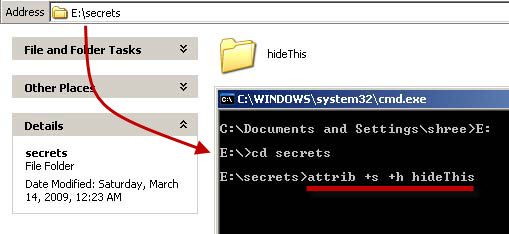
This command will turn the folder into hidden, system folder. Since the system folders are invisible and unsearchable, you folder is ultra hidden now.
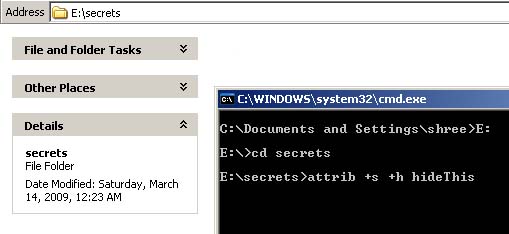
3. To see the folder again, open command prompt and go to the place where the hidden folder is located, then use the following command,
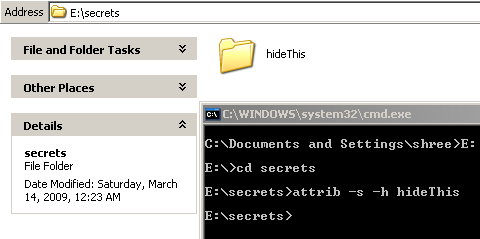
attrib -s -h folderName
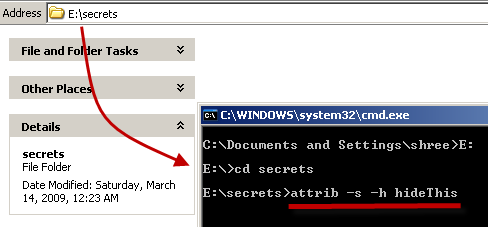
This will remove the hidden and the system attributes from the folder and the folder will be visible again,
That’s it.
Note 1 – If the folder that you want to hide, contains a space in it, then you’ll get error while changing its attributes. To get rid of this error, enclose the folder name in quotes,
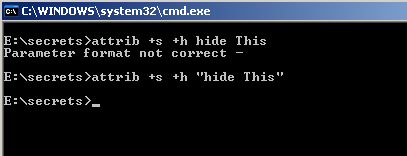
Note 2 – This trick works because, by default, the option, Hide Protected Operating System Files is checked. If your folder is still visible after its attributes are changed, then make sure that this option is checked. To see this option, open any folder, then go to Tools -> Folder Options, and select the view tab.
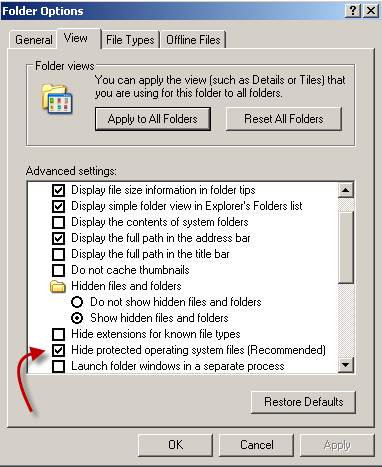
Note that anybody can make the system files, and hence your hidden folder, visible, by changing the above view setting. But since nobody knows where the folder is actually located, it would be almost impossible to view it. You can add one more layer of protection in this Security through obscurity, by naming the folder to something which looks like windows folder, like cache, system32 etc.
Nice post Dude everyone ignore this trick but it is useful to hide our file to naughty technical kids :)
Perfect, I was watching for this in WindowsXP.
Thanks!
@Anil and @Technology Blog
Welcome to HackTrix :)
it’s good & working
—
Sent on a phone using T9space.com
@sijo
Thanks for feedback :)
Its cool dear.realy working
@Mayank
Yes it does works :)
Welcome to HackTrix.
good post very informative
thanks, it’s works