If you are system administrator at a school, college or office, then you must be looking for a good way to block social networking websites like Facebook, Twitter, Orkut etc. Or if you are a parent, then you may want to block certain websites from your computer so that you children don’t open them by mistake.
The best solution would be to use some commercial software to block these websites. Another way would be to configure a proxy filter at the network gateway. Both these solutions are the good ways to block websites. But if you are looking for a cheap or free way to block websites on your computer, which is also very easy to implement, then you should use HOSTS file to block websites.
What is HOSTS File?
HOSTS file is a text file used by an operating system like Windows to map an IP address to a host name. For example, if you open http://localhost in your web browser, Windows checks HOSTS file and takes you to 127.0.0.1 IP address.
127.0.0.1 localhost loopback
Block Websites on Your Computer Using Hosts File
To block any website on your computer, first open HOSTS file in a text editor like notepad. The location of hosts file depend upon your operating system,
- For Windows NT/2000/XP/2003/Vista/7, it is %SystemRoot%\system32\drivers\etc\
- For Windows 95/98/Me, it is %WinDir%\
- For all flavours of Linux and unix, it is located at /etc/hosts
- For Mac OS 9 and earlier, go to System Folder->Preferences
- For Mac OS X, it is located at /private/etc/hosts
If you are on Windows vista or windows xp, go to click on start->run type, notepad %SystemRoot%\system32\drivers\etc\hosts, and press enter.
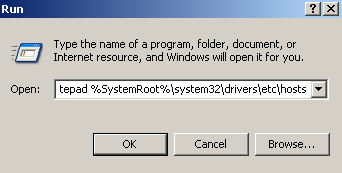
When the hosts file is open, just look for the line,
Under this, add the name(s) of website(s) that you want to block, in the following format,
For instance, if you wish to block twitter from your computer, then the following lines must be added to the hosts file,
127.0.0.1 twitter.com
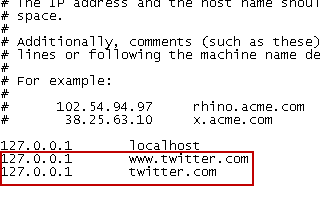
After adding all the websites that you want to block, save the HOSTS file. Now open the blocked websites in your browser. You will not be able to open any blocked website now. To unblock the blocked websites again, remove those lines from hosts file.
Note that after adding the HOSTS file to block websites as explained above, if you are unable to save it, then you may have to open the HOSTS file as an administrator.
Check out the video below that explains how to block a website on your computer using HOSTS file:
For Vista/Win7:
Start – run – cmd – (right click ‘run as administrator’)
In the command prompt type:
notepad %SystemRoot%\system32\drivers\etc\hosts
Hiya i have tried this, but it just says access to C:\windows\system32\drivers\etc\hosts was denied.
@Lesley
See this tutorial, http://www.hacktrix.com/how-to-edit-hosts-file-in-windows-vista
GREAT It WORKS. I have this problem in my office and using Clear OS (firewall). Still failed to block even though suggested me to change setting in Local DNS server.
But when I use HOSTS file to block websites the whole user in the network were blocked. But with this command, limited users does not have the privliges to change the command lines.
Did you know that you can no longer block a lot of microsoft domains in the hosts file ?
I now use a DNS server to catch all the traffic on the LAN and block who I want to for this very reason and that includes my Samsung TV that is calling Samung.com with a MAC address and then connecting the TV to all the major players like Facebook, twitter, Google all within a fraction of a second after the TV is first turned on and with no App’s running.
At night I run Misty Morning to sniff the network and try as I might I still get microsoft calling home and I only manage to stop them using the routers firewall that logs the events and this is because MS uses hard coded IP-Address, Hide the process using SvrHost, bypasses it’s own firewall and any local proxy server to call home.
No single tool will ever keep you safe from Microsoft or Google but don’t tell anyone on twitter else they will ban you in no time.